How to check GA4 is recording all your orders before Black Friday
By Motabar Javaid · · 7 min read · Updated
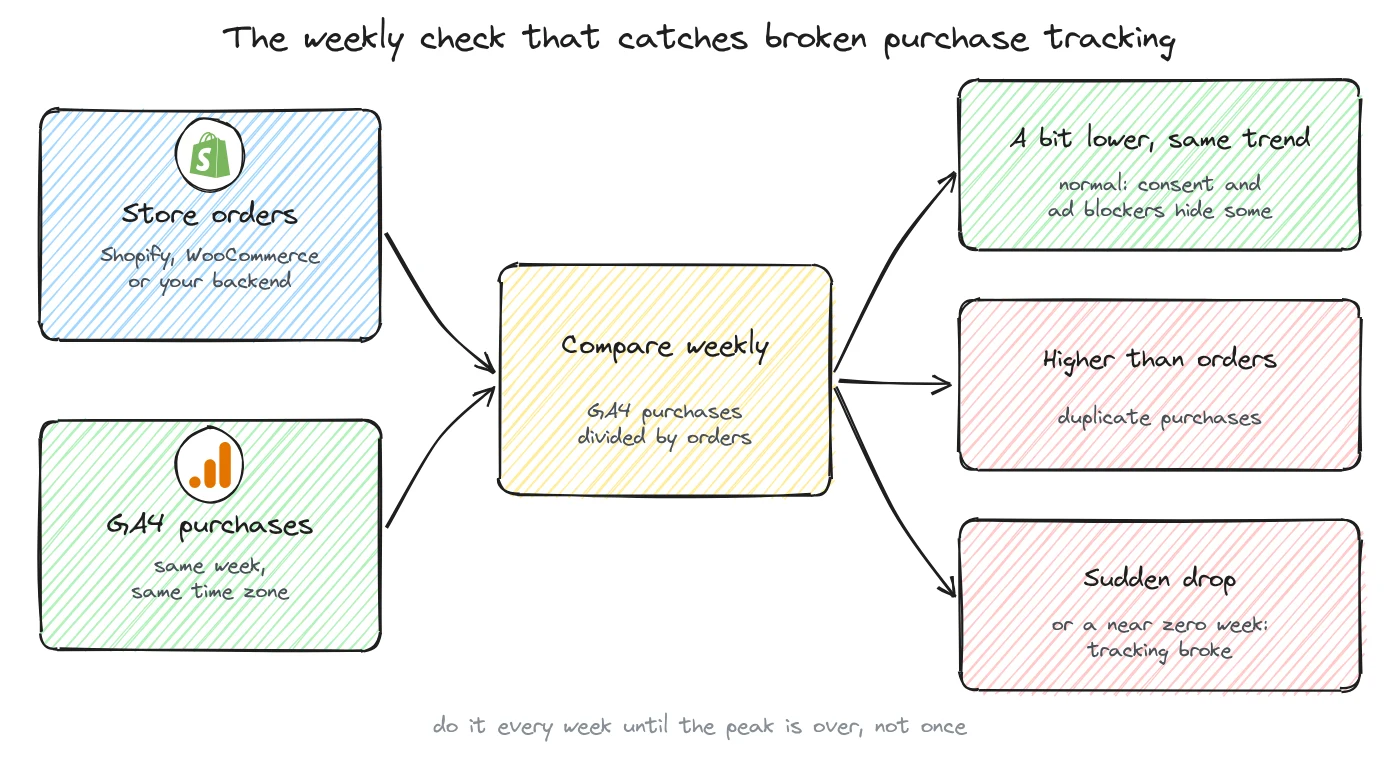
Short answer: Every week, compare the purchases GA4 reports with the real orders in your store for the same dates. GA4 a little lower and moving in step with your orders is normal. GA4 higher than your orders means duplicates. A sudden drop or a near zero week means tracking broke. Then check for repeated or missing transaction IDs, find where orders go missing, and set an alert, so you aren't the last to know on Black Friday.
Black Friday falls on November 27 this year. The weeks around it are when most stores make their biggest money, and when tracking breaks most often: new apps, new checkout tweaks, new cookie banners, all added in a rush. If GA4 stops recording purchases on the Thursday, you won't find out from GA4. You'll find out in January, when the campaign report doesn't make sense.
Why check GA4 against your real orders?
Because GA4 can quietly lose purchases without showing a single error. Search Engine Journal published an audit of eight UK retailers in October 2026. In one, GA4 missed about two thirds of the holiday orders. In another, the store took 2,215 orders between October 28 and December 4, 2025 while GA4 recorded none.
GA4 will never match your store exactly, and it doesn't need to. What matters is that the gap stays small and steady. A gap that changes suddenly is the signal.
Step 1: Compare GA4 purchases with real orders, week by week
- Export orders per week from your store or backend for the last 8 to 12 weeks. Use paid orders, and the same time zone as your GA4 property.
- In GA4, pull purchases (transactions) per week for the same weeks. A free form exploration with Week as the dimension and Transactions as the metric works well.
- Divide GA4 purchases by real orders for each week.
What the ratio tells you:
| What you see | What it usually means |
|---|---|
| Slightly under 100%, steady week to week | Normal. Consent banners, ad blockers and closed tabs hide some buyers |
| A sudden step down that stays down | A change broke tracking on that date: an app, a theme, a checkout update, a consent change |
| A week near zero | Purchase tracking stopped completely |
| Above 100% | GA4 is counting some orders more than once |
The size of a normal gap varies a lot between stores, mostly with how many visitors decline cookies. Learn what yours is in a calm month, then watch for changes.
Step 2: Look for duplicate and missing transaction IDs
Build a free form exploration with Transaction ID as the dimension and Transactions as the metric, for the last few weeks.
- An ID with more than one transaction is a duplicate that got through. Common causes are GA4 installed twice (through GTM and hard coded, or an app plus your own tag), and purchases sent from both the browser and a server or webhook.
- A
(not set)row means purchases arrived with no transaction ID. Nothing can deduplicate those.
Google's help pages say GA4 drops repeat purchase events that share a transaction ID, but only for web data streams. They also warn about a nasty trap: if your tag sends an empty transaction ID, GA4 treats all those purchases as the same one, and you undercount badly. Always send the real order number.
If the duplicates come from the browser and a server both sending purchases, the same thinking as Meta Pixel and Conversions API deduplication applies: pick one owner for each event.
Step 3: Find where orders go missing
If GA4 is clearly lower than it should be, these are the usual places:
- Payment redirects. Buyers who pay on PayPal or another external page sometimes never come back to your thank you page, so the purchase never fires. The ones who do come back can be credited to the payment provider instead of your ad. Add those domains to unwanted referrals, as covered in GA4 settings to change on day one.
- The thank you page doesn't load. The purchase tag usually fires there, once, in the browser. A slow page, a closed tab or an app that changes the page can stop it.
- Shopify. Scripts pasted into the order status page stopped running in 2025 for Plus stores and in August 2026 for everyone else. If yours lived there, read Shopify custom pixels explained.
- WooCommerce. Most setups fire the purchase once in the browser on the order received page, so the same redirect and closed tab problems apply. Server side tracking can fill the gap if it's large.
- Consent. If your banner changed recently, check what happens to the purchase tag when someone declines. Consent Mode v2: basic vs advanced explains the options.
- Orders that never touch the online checkout, like POS sales or orders created by hand. Those were never going to reach GA4 through the browser.
My guide on GA4 not recording conversions walks through debugging a single event step by step.
Step 4: Add an early warning from Search Console
This trick comes from the Search Engine Journal audit. Every week, divide GA4's Google organic sessions by your Search Console clicks for the same week.
The two will never be equal, because they count different things. But the ratio should stay roughly the same week to week. If it suddenly falls, GA4 is losing visits, which usually means it's losing purchases too. The useful part is that Search Console doesn't depend on your tracking code at all, so it keeps counting when GA4 breaks.
Step 5: Before the peak, lock it down
- Freeze tracking changes from about a week before Black Friday until after Cyber Monday (November 30). No new apps, tags or banner changes unless something is broken.
- Place a real test order on the live site and confirm it arrives in GA4 once, with the right value, currency and transaction ID. Then refund it.
- Set an alert. GA4's custom insights can email you when a metric like purchases drops sharply compared with the previous period. You'll find them under the Insights section on GA4's home page.
- Annotate every change in GA4 before and during the peak. More on this below.
- Check the ratio daily over the peak days, not weekly. A few hours of broken tracking on Black Friday is a lot of lost data. Just don't judge ad performance on the day: Black Friday numbers keep changing for days.
Step 6: Mark tracking changes with GA4 annotations
When you compare this Black Friday with last year's, the first question should be "did our tracking change in between?". A new pixel, a new consent banner or a checkout update can move the numbers more than the sale did. GA4 annotations let you write those changes onto the timeline, so whoever reads the report in January sees them.
To add one, open any report with a line graph, right click a point on the graph and choose Add annotation. Give it a title (up to 60 characters), a description (up to 150), a single date or a date range, and a colour. It then shows on every report and report card with a line graph. You'll find the full list under Admin, Data display, Annotations.
A few practical notes from Google's annotations help page:
- You need the Analyst role or above to create annotations. Viewers can see them.
- Each property can hold up to 1,000, so annotate freely.
- Google may add its own annotations when there's a known data issue on its side. Those are worth reading too.
What I'd annotate this week: the date your Black Friday campaigns start, any tracking change (even "fixed duplicate purchases"), the day you froze changes, and Black Friday and Cyber Monday themselves.
This is one of the checks in my tracking checklist for 2027, and the reason Meta, Google Ads and GA4 never quite match is covered there too. If you'd rather have someone check your setup before the peak, that's what my GA4 audit and repair service does.
Frequently asked questions
Why does GA4 show fewer purchases than my store?
Some buyers decline cookies, block trackers, or never return to the thank you page after paying on an external page. A small, steady gap is normal. A gap that suddenly grows means something broke and needs fixing.
Why does GA4 show more purchases than my store?
Usually duplicates: GA4 installed twice, or purchases sent from both the browser and a server. Check the Transaction ID report for IDs counted more than once, and make sure every purchase sends the real order number.
How often should I compare GA4 with my orders?
Weekly, as a routine, and daily over the peak days around Black Friday and Cyber Monday. The point is to catch a sudden change within days, not months.