Shopify GA4 purchase event not firing? Custom pixels explained
By Motabar Javaid · · 6 min read · Updated
Short answer: Shopify no longer runs your own scripts on the checkout, thank you or order status pages. The old "additional scripts" box and checkout.liquid were switched off on those pages for Plus stores on August 28, 2025 and for all other stores on August 26, 2026. Purchase tracking now has to come from Shopify's Customer Events: either an app pixel like the Google & YouTube app, or a custom pixel that listens for checkout_completed and passes the order to GA4. Pick one route, send the order ID as the transaction_id, and test it with Shopify's Pixel Helper, because GTM Preview mode can't see inside the pixel.
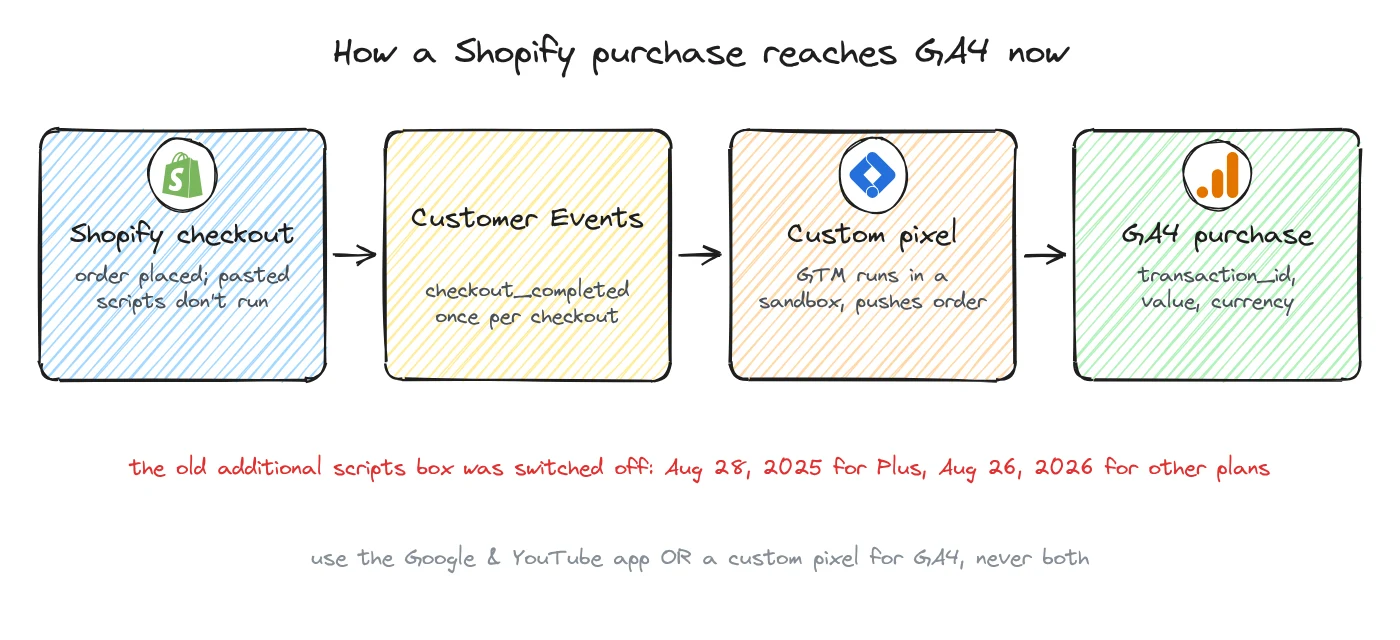
If your GA4 purchases dropped to zero, or suddenly doubled, around one of those dates, this is almost certainly why.
Why did my Shopify purchase tracking stop working?
For years, the standard setup was a GTM snippet or a GA4 purchase tag pasted into the "additional scripts" box on the order status page. Shopify replaced the checkout with Checkout Extensibility, its newer checkout that you customise with apps and blocks instead of code, and as part of that it stopped running pasted scripts on the checkout, thank you and order status pages.
Shopify's dates:
| Store type | Scripts stopped on thank you and order status pages |
|---|---|
| Shopify Plus | August 28, 2025 |
| All other plans | August 26, 2026 |
Nothing errors when this happens. The old code just doesn't run, so purchases quietly disappear from GA4, Google Ads and Meta.
What replaced it?
Shopify's Customer Events system. It sends standard events like page_viewed, product_added_to_cart, checkout_started and checkout_completed to "pixels", which are small scripts that decide what to do with each event. There are two kinds:
- App pixels, added by installing an app like the Google & YouTube app or Meta's app. You don't write any code.
- Custom pixels, which you add yourself under Settings, Customer events, Add custom pixel. You write JavaScript that subscribes to the events and sends them wherever you want, including into Google Tag Manager.
According to Shopify's developer docs, custom pixels run in a "lax sandbox", which is an isolated iframe separate from the page. Your code gets the event data Shopify hands it, but it can't read or change the checkout page itself. That isolation is where most of the confusion comes from.
Should I use the Google & YouTube app or a custom pixel?
| Google & YouTube app | Custom pixel with GTM | |
|---|---|---|
| Setup | A few clicks | Code plus GTM configuration |
| GA4 ecommerce events | Yes | Yes, you map them |
| Google Ads conversions | Yes | Yes |
| Other platforms through GTM | No | Yes |
| Control over parameters and naming | Limited | Full |
If GA4 and Google Ads are all you need, the app is usually the safer choice. A custom pixel makes sense when you run other tags through GTM, need custom parameters, or want one place to manage everything.
What you must not do is run both for GA4. That's the most common reason I see purchases counted twice.
How to send purchases to GA4 with a custom pixel and GTM
Shopify publishes a tutorial for loading Google Tag Manager inside a custom pixel. The pattern is:
- Add a custom pixel and paste in the GTM container snippet that Shopify's tutorial provides.
- Subscribe to
checkout_completedand push the order into the data layer. - In GTM, build a trigger and GA4 tag that read those values.
The subscribe part looks like this. The field paths are the ones Shopify uses in its own examples:
analytics.subscribe('checkout_completed', (event) => {
  const checkout = event.data?.checkout;
  window.dataLayer.push({
    event: 'checkout_completed',
    transaction_id: checkout?.order?.id,
    value: checkout?.totalPrice?.amount,
    currency: checkout?.currencyCode
  });
});
In GTM:
- Create a Custom Event trigger for
checkout_completed. The name has to match theeventkey in your pixel exactly. - Create Data Layer Variables for
transaction_id,valueandcurrency. - Create a GA4 Event tag named
purchasethat sends those three as parameters, fired by that trigger.
If you also want product level reporting, map the checkout's line items into a GA4 items array the same way. If the data layer is new to you, my guide on what a data layer is explains the idea.
Why are my Shopify purchases duplicated or missing a transaction ID?
The usual causes:
- Two installs sending the same purchase. For example, the Google & YouTube app plus a custom pixel, or an old theme snippet plus a new pixel. Remove one.
- No
transaction_id. Without it, GA4 can't spot a repeat of the same order. Always send the Shopify order ID. GA4 uses the transaction ID to drop duplicate purchase events. - Wrong field mapping. Sending tax or subtotal as
value, or leaving outcurrency, makes revenue look wrong even when the count is right. - Thank you page reloads on old setups. Shopify's
checkout_completedevent fires once per checkout, which is one of the real improvements over the old pasted scripts.
The same "one source per event" rule applies to Meta. If you run Meta's app and your own Conversions API setup, read my guide on deduplicating Meta Pixel and Conversions API events.
Why doesn't GTM Preview mode work on the Shopify checkout?
Because GTM is running inside the sandboxed iframe, not on the page. Tag Assistant looks for the container on the page, doesn't find it, and reports that it isn't there. Shopify's own tutorial says Google Tag Assistant's troubleshooting isn't compatible with custom pixels.
How to test instead:
- Install Shopify's Pixel Helper browser extension and confirm your pixel receives
checkout_completedwithout errors. - Open GA4 DebugView or the Realtime report and place a test order. You should see one
purchasewith a transaction ID, value and currency. - Publish GTM changes before testing, since you can't preview unpublished versions inside the pixel.
My guide to debugging GTM tags covers DebugView in more detail.
What about orders that never touch the online checkout?
A custom pixel only sees orders placed through your online store checkout. Sales from Shopify POS, or orders created by an app or the API, never fire checkout_completed in a browser, so they will never show up in GA4 through a pixel.
If those orders matter for your reporting or ad optimisation, you need a server side route: send them from Shopify's order data to GA4 or your ad platforms directly. My guide on whether server side tracking is worth it helps you decide if that's worth the effort.
A quick health check
Once the new setup is live, compare a week of Shopify orders with GA4 purchases. GA4 will usually be a bit lower, because consent banners and ad blockers hide some buyers. If GA4 is higher than Shopify, you're double counting. If it's far lower, something is still missing. My guide on GA4 not recording conversions walks through where to look, and checking GA4 records all your orders turns this into a weekly routine.
If you'd rather have this rebuilt and tested properly, it's a standard part of my GA4 audit and repair service.
Frequently asked questions
Can I still paste a GA4 purchase tag into the Shopify order status page?
No. Shopify stopped running additional scripts on the thank you and order status pages on August 28, 2025 for Plus stores and August 26, 2026 for all other plans. Purchase tracking now runs through Customer Events, using an app pixel or a custom pixel.
Why does GA4 show double the Shopify orders?
Usually because two things send the same purchase, such as the Google & YouTube app and a custom pixel. Keep one, and make sure every purchase includes the Shopify order ID as transaction_id.
Why does Tag Assistant say my GTM container isn't found on the Shopify checkout?
GTM loaded through a custom pixel runs inside a sandboxed iframe, so Tag Assistant can't detect it. Test with Shopify's Pixel Helper and GA4 DebugView instead.