How to track Elementor and WordPress form submissions in GA4
By Motabar Javaid · · 6 min read · Updated
Short answer: Most WordPress form plugins send the form in the background without reloading the page, so GA4's automatic form tracking and GTM's built in form trigger either miss the submission or count failed attempts. The reliable fix is to listen for the success event the plugin itself fires, like submit_success in Elementor Pro or wpcf7mailsent in Contact Form 7, push it into the data layer, and send a generate_lead event to GA4 from Google Tag Manager. If your plugin has no documented success event, redirect to a thank you page instead.
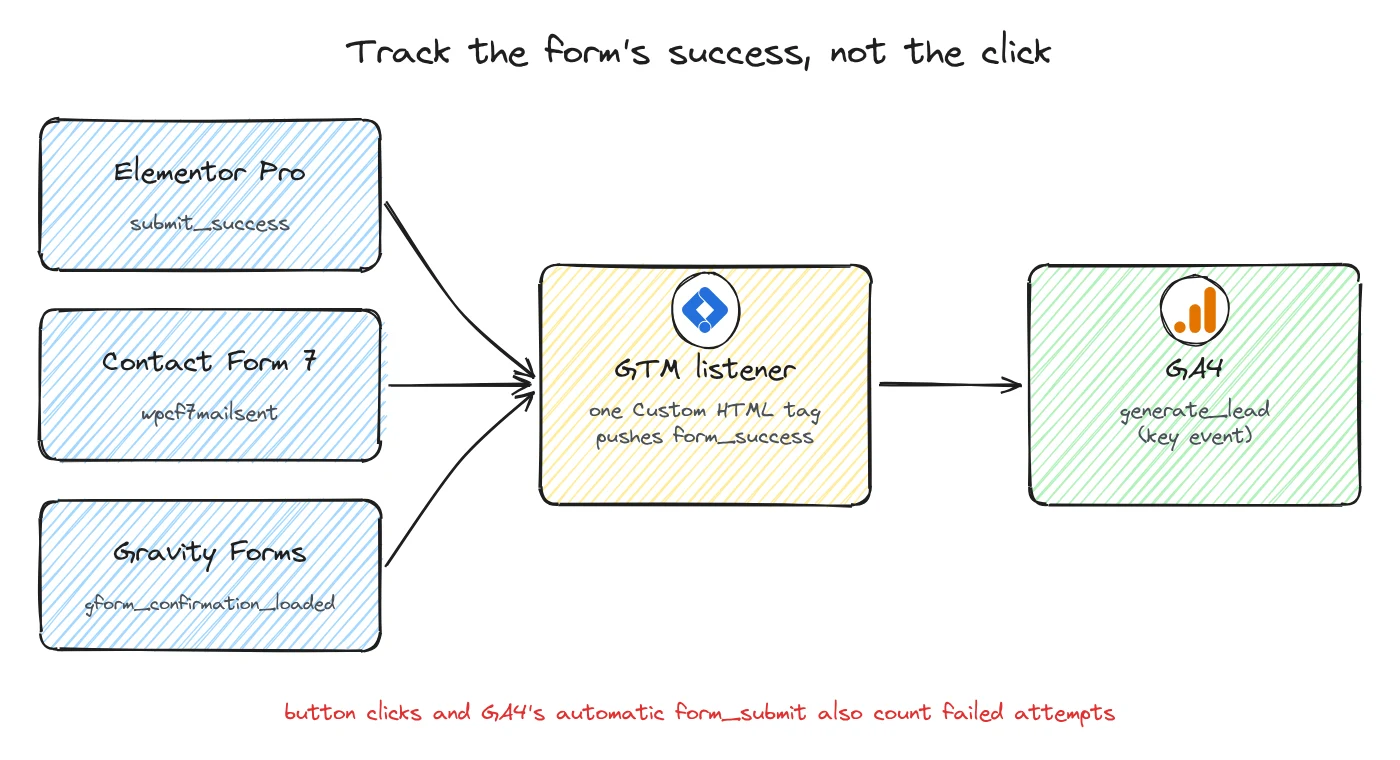
Tracking WordPress forms looks simple, which is exactly why it so often ends up counting the wrong thing.
Why is my WordPress form tracking wrong?
Three approaches cause most of the problems:
- Counting button clicks. A click on "Send" fires even when a required field is empty, the email is invalid or the reCAPTCHA fails. You end up with more "leads" than real enquiries.
- GA4 enhanced measurement form interactions. It sends
form_startandform_submitautomatically, but it can't tell a successful submission from a failed one, and it often fires on search boxes and newsletter widgets too. - GTM's Form Submission trigger. Forms that send in the background (AJAX) often don't fire the browser's normal submit event in a way GTM can rely on, so it misses some submissions and catches some failures.
What you want is the moment the plugin confirms the form went through. Every major plugin knows that moment, and the good ones announce it.
Option 1: Listen for the plugin's success event (recommended)
These are the documented events for the most popular plugins:
| Plugin | Success event | What it means |
|---|---|---|
| Elementor Pro forms | submit_success (a jQuery event) |
The form was accepted by the server |
| Contact Form 7 | wpcf7mailsent |
The submission worked and the email was sent |
| Gravity Forms | gform_confirmation_loaded (a jQuery event) |
The confirmation message is showing, on AJAX forms with a message confirmation |
Contact Form 7 also fires wpcf7submit on every completed submission, including ones where the email failed, so wpcf7mailsent is the one to use.
Step 1: Add one listener tag in GTM
Create a Custom HTML tag with this code. It covers all three plugins, so you can use it as is even if you only run one of them:
<script>
  (function () {
    window.dataLayer = window.dataLayer || [];

    // Contact Form 7: only fires when the email was actually sent
    document.addEventListener('wpcf7mailsent', function (e) {
      window.dataLayer.push({
        event: 'form_success',
        form_plugin: 'contact_form_7',
        form_id: e.detail && e.detail.contactFormId
      });
    });

    if (window.jQuery) {
      // Elementor Pro forms
      jQuery(document).on('submit_success', function () {
        window.dataLayer.push({ event: 'form_success', form_plugin: 'elementor' });
      });

      // Gravity Forms (AJAX forms with a message confirmation)
      jQuery(document).on('gform_confirmation_loaded', function (e, formId) {
        window.dataLayer.push({
          event: 'form_success',
          form_plugin: 'gravity_forms',
          form_id: formId
        });
      });
    }
  })();
</script>
Fire it with a Window Loaded trigger on all pages. Elementor and Gravity Forms use jQuery events, and WordPress often loads jQuery after GTM starts. Waiting for Window Loaded makes sure jQuery is there when the listener is attached.
If the data layer is new to you, my guide on what a data layer is explains why this beats scraping the page for a success message.
Step 2: Create the trigger and variables
- Trigger: a Custom Event trigger with the event name
form_success. - Variables: Data Layer Variables for
form_pluginandform_id.
Step 3: Send the GA4 event
Create a GA4 Event tag named generate_lead, fired by the form_success trigger. Send form_id as an event parameter so you can tell your contact form from your quote form. Register it as a custom dimension in GA4 if you want to report on it.
Then mark generate_lead as a key event, and count it once per session, as covered in my guide to setting up key events in GA4.
Step 4: Add your ad platforms
The same trigger can fire your Google Ads conversion tag and Meta's Lead event. One trigger for every platform means they all count the same thing, which makes it much easier to compare them later.
Option 2: Redirect to a thank you page
If your form plugin doesn't document a success event, or you'd rather avoid custom code, set the form to send people to a thank you page after a successful submission. Elementor Pro has a Redirect action for this, and most other form plugins have a similar setting or add on.
Then fire generate_lead on a Page View trigger for that URL. It's simple and reliable. The downside is that anyone who reloads or bookmarks the thank you page fires the event again, which is why counting once per session helps.
This is also the right method for forms that load in an iframe, like HighLevel or HubSpot embeds, where GTM can't see inside the form at all. I cover that case in tracking conversions in GoHighLevel. HubSpot forms have their own success events, covered in tracking HubSpot form submissions in GA4.
Should I turn off GA4's automatic form tracking?
If you've set up generate_lead properly, I usually turn off Form interactions under enhanced measurement (Admin, Data streams, your stream, Enhanced measurement). It stops form_start and form_submit firing on search boxes and failed attempts, and it removes the temptation for someone to mark form_submit as a key event later.
If you keep it, just make sure only generate_lead is marked as a key event, not form_submit. Otherwise every lead counts twice.
How to test it
- Open GTM Preview mode on the page with your form.
- Submit the form with a required field left empty. Nothing should fire.
- Submit it properly. You should see one
form_successevent in the data layer and your GA4 tag firing once. - Check GA4 DebugView for
generate_leadwith the rightform_id.
If something doesn't fire, my guide to debugging GTM tags walks through Preview mode step by step.
Don't forget the lead's source
Tracking the submission tells GA4 a lead happened. It doesn't put the lead's source into your CRM or inbox. For that, save UTM parameters and click IDs in hidden form fields, as covered in capturing UTM parameters in forms. All three plugins above support hidden fields.
If you'd like this set up across your forms and ad platforms, it's a standard part of my Google Tag Manager implementation work.
Frequently asked questions
How do I track Elementor form submissions in GA4?
Elementor Pro fires a jQuery event called submit_success when a form is accepted. Listen for it in a GTM Custom HTML tag, push a form_success event to the data layer, and send generate_lead to GA4 from that trigger. Or use Elementor's Redirect action and track the thank you page.
Why does GA4 count more form submissions than I actually receive?
Usually because tracking fires on the button click or GA4's automatic form_submit, which both count failed attempts. Track the plugin's success event instead, and make sure only one event is marked as a key event.
Which Contact Form 7 event should I use for conversion tracking?
Use wpcf7mailsent. It only fires when the submission worked and the email was sent. wpcf7submit also fires when sending the email failed.